

Canva AI features
If you’ve opened Canva recently, you’ve probably noticed it’s no longer just a template library with drag-and-drop tools. Canva AI brings together design, writing, image, video, and even code, all in one place, fundamentally changing how the platform works.
But here’s the real question: are Canva AI features actually worth your time and money, or are they just flashy additions that complicate what used to be a simple design tool?
This review breaks down every major Canva AI feature available in February 2026 — what they do, how well they work in practice, where they fall short, and whether upgrading to access them makes financial sense for your specific situation.
Who This Is For / Who This Is NOT For
This review is for you if:
- You’re a Canva user wondering if the Pro plan’s AI features justify the cost
- You create social media content, presentations, or marketing materials regularly
- You want to speed up design work without hiring a designer or learning complex software
- You’re considering Canva as a replacement for multiple tools (Photoshop, stock photos, video editors)
This is NOT for you if:
- You need professional-grade photo editing with precise control (use Adobe Creative Suite)
- You’re a professional illustrator or photographer requiring best-in-class AI imagery
- You only design once or twice a month — the free plan likely covers your needs
- You need advanced video editing capabilities beyond basic social clips
What Is Canva AI (Magic Studio)?
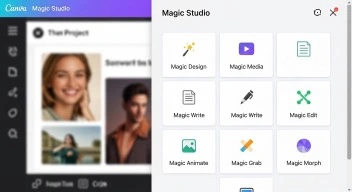
Magic Studio brings together the best AI-powered features for you and your team right inside Canva to help you move from your first brainstorm to your finished product with more ease, speed, and creativity than ever before.
Instead of being a separate product you pay for, Canva’s AI features are bundled under the name “Magic Studio” and integrated directly into the platform you’re already using. Some features are available on the free plan with monthly limits, while others require Canva Pro, Teams, or Enterprise subscriptions.
The AI tools cover four main categories:
Content Generation — Creating designs, images, videos, and text from scratch using prompts
Content Editing — Modifying existing images and designs with AI-powered tools
Workflow Automation — Converting formats, translating, resizing, and batch processing
Creative Assistance — Getting design suggestions, feedback, and brand-aligned recommendations
What makes Canva’s approach different from standalone AI tools is the integration. You can tag @Canva in the comments to chat through ideas, generate images and text, or get help refining your work without breaking your creative flow. You’re not copying prompts between ChatGPT and Photoshop — everything happens in one place.
Every Major Canva AI Feature Explained (February 2026)
1. Canva AI Assistant (Chat Interface)
The newest addition to Magic Studio is the conversational AI assistant. Simply chat in natural language with text or voice commands—just like talking to a teammate.
What it does: You describe what you need, and Canva AI generates design options, writes copy, suggests improvements, or answers questions about your project. Think of it as having a junior designer who can execute ideas but needs your creative direction.
Real-world use case: You’re creating a webinar invitation and type “create a professional webinar invitation for AI tools workshop, modern tech aesthetic, blue and white color scheme.” Canva AI generates 4-6 complete design options you can immediately edit.
Limitation: The designs lean heavily on Canva’s template aesthetics. If you’re looking for truly unique, unexpected creative work, you’ll still need human design input. The AI is better at execution than original creative thinking.
2. Magic Design (Template Generation)
Magic Design is an AI design generator powered by leading generative AI technology. Use it to create custom, on-brand, and attention-grabbing designs in seconds.
What it does: You provide a text prompt or upload images, and Magic Design generates complete, editable designs across multiple formats — social posts, presentations, posters, business cards, documents, and more.
How it actually works: Unlike tools that just give you a single output, Magic Design creates 4-8 variations. Each is fully editable in Canva’s normal editor, meaning you’re not locked into the AI’s choices.
Best for: Starting projects when you’re facing a blank page. It gives you a creative foundation to build from rather than forcing you to conceptualize everything from scratch.
Honest assessment: The quality varies significantly based on how specific your prompt is. Vague requests like “make a poster” produce generic results. Detailed prompts like “modern tech conference poster, minimalist design, navy and orange color scheme, geometric shapes” produce genuinely usable starting points.
3. Magic Media (Image & Video Generation)
This is Canva’s text-to-image and text-to-video generator, directly competing with Midjourney, DALL-E, and Runway.
What it creates:
- Images: Static visuals in various styles (photorealistic, illustrated, artistic)
- Videos: Canva AI Video generates longer (8-second), high-quality videos with sound directly from a text prompt, while Magic Media creates shorter 4-second clips
Practical use: Need a hero image for a blog post about remote work? Type “professional woman working on laptop in modern home office, natural lighting, calm atmosphere” and get usable results in seconds.
Where it falls short: Pro’s 500 monthly credits sound generous until you’re iterating on images (3–5 generations per concept) across multiple projects. Heavy users will hit limits. Also, the images have a recognizable “AI-generated” aesthetic that won’t fool anyone.
4. Magic Write (AI Text Generation)
Canva’s built-in copywriting tool, powered by OpenAI technology.
What it handles:
- Social media captions and post copy
- Presentation talking points and slide text
- Email subject lines and body copy
- Blog post outlines
- Product descriptions
Realistic expectation: Magic Write is faster than switching to ChatGPT, but less thoughtful. The convenience of inline copywriting is real—no tab-switching, no copy-paste. But the output lacks depth. It’s perfect for captions and bullets, weak for anything requiring brand voice or strategic messaging.
If you need a quick Instagram caption or bullet points for a slide, it’s genuinely useful. If you’re writing anything that requires a specific brand voice, strategic positioning, or persuasive copy, you’ll spend more time editing than if you’d written it yourself.
5. Magic Edit (AI Image Modification)
With Magic Edit, you can now add to, replace, or edit your image with a short written prompt. Simply select where you want to see the change, write your prompt, and watch as your image transforms in seconds.
What it does: Instead of using Photoshop’s complex tools, you brush over an area in your image and describe what you want there instead. Canva’s AI fills it in realistically.
Real examples:
- Change the color of a product in a photo without re-shooting
- Swap a cloudy sky for a sunset
- Add props or objects that weren’t in the original image
- Change clothing colors or patterns
Testing results: Magic Edit works surprisingly well for simple object swaps and color changes. It struggles with complex edits involving human faces, intricate textures, or maintaining consistent lighting across the entire image. For product photography and basic retouching, it’s legitimately useful. For professional editorial work, you’ll still need proper photo editing software.
6. Magic Eraser
The simpler counterpart to Magic Edit — this tool removes unwanted objects from photos.
How it works: Use the brush or click on the object you want to remove, then hit “Erase” and watch the magic happen. The AI analyzes the surrounding area and fills in the gap seamlessly.
Best use cases:
- Removing photobombers from event photos
- Cleaning up product shots by eliminating distractions
- Getting rid of unwanted signs, wires, or clutter in backgrounds
Limitation: Works best on relatively simple backgrounds. If you’re removing something from a complex, detailed background (like removing a person from a crowded street), the results can look blurry or unnatural. For professional photography, tools like Photoshop’s Content-Aware Fill still deliver better results.
7. Magic Grab
One of the most impressive features in Magic Studio.
What it does: Magic Grab makes any image editable, just like a Canva template, letting you redesign and rework your images without hours of editing or training. Use Magic Grab to select and separate the subject of your photo, making it an editable element that you can edit, reposition, or resize.
Why this matters: Normally, elements in a photo are “locked” together. Magic Grab uses AI to detect individual subjects (people, objects, text) and separates them into movable layers — like magic cutouts you can rearrange.
Practical scenario: You have a team photo where someone is positioned awkwardly. Instead of re-shooting, use Magic Grab to select that person, move them to a better spot in the composition, and resize them slightly for better balance. The AI fills in the background where they used to be.
Honest take: This feels genuinely magical when it works. The subject detection is impressively accurate for most standard photos. It occasionally struggles with complex scenes where subjects overlap significantly or have similar colors to the background.
8. Background Remover
It’s probably the feature that I use the most, and a lot of Canva users use it so they actually added it to the top taskbar.
What it does: Automatically removes backgrounds from images with one click, isolating the main subject on a transparent background.
When you’d use it:
- Creating product images for e-commerce
- Making profile pictures or headshots with clean backgrounds
- Preparing images for composite designs
- Creating stickers or isolated graphics
Performance: Works remarkably well on clear subjects with defined edges — people, products, animals. Gets messy with transparent objects (glass, smoke), fine details (hair, fur), or subjects that blend into backgrounds.
Cost consideration: Standalone background removal tools typically charge $10-15/month. Getting this bundled into Canva Pro at $15/month total makes it excellent value if you use it regularly.
9. Magic Expand
Extends images beyond their original borders using AI.
How it works: You crop an image larger than its actual size, and Magic Expand intelligently fills in the missing areas by analyzing the existing content and generating realistic extensions.
Perfect for:
- Adjusting image aspect ratios for different platforms (turning a square into a wide format)
- Fixing poorly cropped photos
- Creating more space around subjects that are too close to edges
Reality check: Results vary dramatically based on image complexity. Simple backgrounds (solid colors, gradients, basic patterns) extend beautifully. Complex or detailed backgrounds often look obviously AI-generated in the extended areas. Always review carefully before using in professional contexts.
10. Magic Switch (Format Conversion)
Turn a whiteboard of ideas into a company-wide email, presentation slides into a Japanese blog post, or an Instagram ad into a poster in Spanish with the click of a button.
What this saves you: The tedious work of reformatting content for different platforms or converting between content types manually.
Key capabilities:
- Resize designs for different social platforms instantly
- Convert presentations to documents (and vice versa)
- Translate designs into 100+ languages while maintaining layout
- Transform one design type into another (poster → flyer → social post)
Where it excels: Resizing and translation are genuinely time-savers. Instead of manually adjusting every element for Instagram vs. LinkedIn dimensions, Magic Switch handles it intelligently.
Where it disappoints: Converting between fundamentally different content types (presentation → blog post) often requires significant manual editing afterward. The AI understands layout but doesn’t always grasp content flow and narrative structure.
11. Magic Animate
Adds motion and animation effects to static designs.
What it offers: Apply pre-built animations to text, images, and design elements with one click. Options include fades, slides, pops, and other movement effects.
Best for: Social media content where movement captures attention in feeds — Instagram stories, TikTok graphics, LinkedIn posts.
Limitation: These are preset animations, not custom motion design. If you need specific, branded animation sequences, you’re still better off with dedicated animation software or hiring a motion designer.
12. Magic Morph (Text & Shape Transformation)
Applies visual effects and textures to text and shapes.
What it does: Transform plain text or shapes with AI-generated textures, patterns, and effects based on text prompts. Turn “Summer Sale” into text that looks like it’s made of sand, ice, neon, or any texture you describe.
Use cases:
- Eye-catching social media graphics
- Event posters and flyers
- Attention-grabbing headlines
- Creative branding elements
Honest assessment: Fun and visually impressive, but a “nice to have” rather than essential. Most professional designers would prefer more control over text effects. Great for social content creators who need quick visual impact.
How Canva AI Pricing Actually Works (2026)
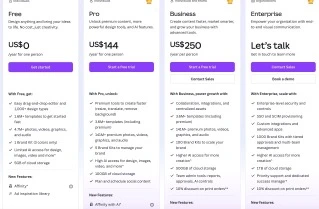
Understanding what you get at each price tier is crucial because the differences significantly impact value.
Free Plan
- Cost: $0
- AI Access: Limited monthly uses (approximately 50 uses total across all AI features)
- What this means in practice: You can test AI features, but regular use isn’t viable. You’ll hit limits within the first week if creating content consistently.
Canva Pro (Individual)
- Cost: $15/month (billed monthly) or $12.99/month (billed annually at $119.99/year)
- AI Access: “High access” — approximately 500 AI credits per month
- Reality: Pro’s 500 monthly credits sound generous until you’re iterating on images (3–5 generations per concept) across multiple projects. Heavy users will hit limits
- Best for: Freelancers, solopreneurs, and content creators producing regular but not massive volumes of AI-generated content
For context on whether Canva Pro is worth it compared to other AI productivity tools, our guide on AI productivity tools for beginners provides helpful comparisons.
Canva Teams (For Businesses)
- Cost: $14.99/month per person (minimum 3 people, annual billing)
- AI Access: Same 500 credits per person/month, but with team collaboration features
- Key difference: Shared brand kits, approval workflows, team asset libraries
Canva Enterprise
- Cost: Custom pricing (contact sales)
- AI Access: Unlimited AI credits
- Who needs this: Enterprise’s unlimited credits are a meaningful upgrade for agencies producing high volumes of AI-assisted content
Real-World Testing: What Actually Works
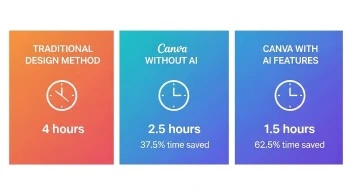
I spent three weeks using Canva AI features across typical freelancer and small business scenarios. Here’s what I learned:
Scenario 1: Social Media Content Creation
Task: Create a week’s worth of Instagram posts for a wellness brand
Tools used: Magic Design, Magic Media (images), Magic Write
Result: Successfully created 7 posts in about 90 minutes — far faster than starting from scratch. However, I spent significant time editing the AI-generated copy to match brand voice and adjusting images to avoid the “obviously AI” look.
Verdict: Genuine time-saver (normally would take 3-4 hours), but not “click and publish” quality.
Scenario 2: Client Presentation
Task: Create a 15-slide pitch deck for a marketing proposal
Tools used: Magic Design (initial layouts), Magic Write (talking points), Magic Grab (image adjustments)
Result: Magic Design provided solid layout foundations. Magic Write’s bullet points were too generic and required substantial rewriting. Magic Grab was genuinely helpful for adjusting stock photos.
Time saved: Approximately 40% compared to building from scratch.
Scenario 3: Product Marketing Materials
Task: Create product images with backgrounds removed and multiple format variations
Tools used: Background Remover, Magic Expand, Magic Switch
Result: This is where Canva AI truly shines. Background Remover worked flawlessly on product shots. Magic Switch made creating versions for different platforms effortless.
Verdict: This alone could justify the Pro subscription for e-commerce sellers or product marketers.
The Biggest Limitations You Need to Know
Before upgrading to access Canva AI features, understand these constraints:
Credit Limits Hit Faster Than Expected
Even with 500 monthly credits on the Pro plan, heavy users run out. Each AI-generated image costs credits. Each Magic Edit costs credits. If you’re iterating on designs (which is normal creative work), you can easily burn through 50-100 credits on a single project.
What this means: Budget your AI usage strategically. Don’t use AI for every small task — save it for when it genuinely saves significant time.
AI Outputs Have a Recognizable Aesthetic
Images generated by Magic Media look AI-generated. The lighting, composition, and overall feel have a distinctive quality that experienced designers and marketers recognize immediately. For social media content, this is usually fine. For high-stakes marketing campaigns or professional branding, you’ll want human-created or professionally photographed images.
Brand Voice Requires Heavy Editing
Magic Write is perfect for captions and bullets, weak for anything requiring brand voice or strategic messaging. If your brand has a distinct personality, tone guidelines, or specific messaging frameworks, expect to rewrite most of what Magic Write produces.
The AI understands grammar and structure but doesn’t grasp brand strategy, audience psychology, or nuanced positioning.
Collaboration Features Amplify Value (Or Not)
When testing with a small team, the ability to generate options, comment, and approve within Canva made the AI tools exponentially more useful. Solo creators won’t feel this benefit as much.
If you’re a solo freelancer, many of the collaborative AI features won’t add value to your workflow. Teams working together see significantly more return on investment.
Should You Upgrade for Canva AI Features?
Upgrade to Canva Pro if:
✅ You create visual content at least 3-4 times per week
✅ You’re currently paying for separate tools (stock photos, background removal, basic design software)
✅ Speed matters more than absolute creative uniqueness
✅ You work with product photography or e-commerce visuals
✅ You need to create content in multiple formats/sizes regularly
Realistic ROI calculation: If you’re currently paying $50/month for stock photos + $10/month for a background remover + spending 5 hours/month on design tasks, Canva Pro at $12.99/month (annual) saves you both money and time.
Stick with the free plan if:
❌ You only design occasionally (once or twice a month)
❌ Your work requires highly original, distinctive creative
❌ You’re already proficient in professional design software
❌ Budget is extremely tight and free tools suffice
❌ You primarily need AI writing (use ChatGPT directly instead)
Best Alternatives to Consider
For Professional Design + AI
Adobe Creative Cloud ($59.99/month)
Better if you need: Professional-grade photo editing, advanced vector work, precise control
Worse if you need: Simple, fast content creation; affordable pricing
For AI Image Generation Only
Midjourney ($10-60/month depending on plan)
Better if you need: Best-in-class AI image quality, artistic control
Worse if you need: Integrated design tools, templates, easy editing
For AI Writing
ChatGPT Plus ($20/month)
Better if you need: Strategic copywriting, brand voice control, long-form content
Worse if you need: Visual design integration
If you’re specifically interested in AI writing tools for professional work, our comprehensive guide on the best AI writing tools covers options that pair well with Canva.
For Budget-Conscious Creators
Microsoft Designer (Free)
Better if you need: No-cost AI design generation
Worse if you need: Advanced features, brand kit management, team collaboration
Frequently Asked Questions
Q: Can I use Canva AI features on the free plan?
Yes, but with severe limitations. The free plan includes approximately 50 total AI uses per month across all features combined. For regular content creation, this runs out in the first week. Think of the free plan as a way to test features before committing to Pro.
Q: Do Canva AI credits roll over to the next month?
No. Unused credits expire at the end of each billing cycle. If you have 200 credits remaining on the last day of the month, they don’t carry forward. This makes Canva AI better suited for consistent creators rather than sporadic users.
Q: Can I use AI-generated images commercially?
Yes, with important caveats. You can read the full AI Product Terms here as well as our Acceptable Use Policy. Content generated using Canva AI on paid plans can be used commercially. However, you should always verify that AI-generated content doesn’t inadvertently replicate copyrighted material or trademarked designs.
Q: How does Canva AI compare to using ChatGPT for design prompts?
Canva AI is integrated directly into the design workflow, which eliminates copying and pasting between tools. However, standalone AI tools like ChatGPT often produce more sophisticated text and detailed creative direction. For a detailed comparison of how different AI assistants handle productivity tasks, see our article comparing Notion AI vs ChatGPT.
Q: Will Canva AI replace professional designers?
No. Canva AI accelerates execution and handles routine design tasks, but it doesn’t replace strategic thinking, original creative concepts, or nuanced brand understanding. Professional designers use tools like Canva AI to work faster, not to eliminate their role entirely. Think of it as a junior designer assistant, not a creative director replacement.
The Verdict: Is Canva AI Worth It?
For the right user, absolutely yes. Canva AI features deliver genuine value when:
- You create visual content regularly (at least weekly)
- You’re currently juggling multiple subscriptions for design tools
- Speed and efficiency matter more than cutting-edge creative originality
- You work with e-commerce, social media, or marketing materials
For others, probably not. Skip the upgrade if:
- You design infrequently and the free plan covers your needs
- You require professional-grade design precision
- You’re looking for AI tools primarily for writing (better standalone options exist)
- You’re already invested in Adobe Creative Cloud or similar professional software
The most valuable Canva AI features aren’t the flashy image generators — they’re the practical workflow tools like Background Remover, Magic Grab, and Magic Switch that eliminate tedious manual work. If your use case involves product photography, multi-platform content, or regular format conversions, the time savings alone justify the cost.
For a broader look at how AI tools fit into a complete productivity system, our guide on organizing your life with AI tools in 2026 provides helpful context on building an integrated AI toolkit.
Our Authority Sources
1. Canva Official Website
Direct source for feature specifications, pricing, and official product documentation. As the primary source, Canva’s own materials provide the most accurate information about current capabilities and limitations.
2. Canva Newsroom
Official announcements and product updates directly from Canva’s press team. Provides verified information about new features, strategic direction, and company policies.
3. TechRadar Pro
Established technology publication with independent testing and reviews of software tools. Their analysis provides unbiased third-party perspective on Canva’s AI capabilities and competitive positioning.
4. Shopify Blog
Reputable e-commerce platform’s analysis of design tools for business users. Particularly valuable for understanding practical applications in e-commerce and product marketing contexts.
5. Business Wire
Press release distribution service publishing official Canva announcements and partnerships. Verified source for corporate developments and feature launches.